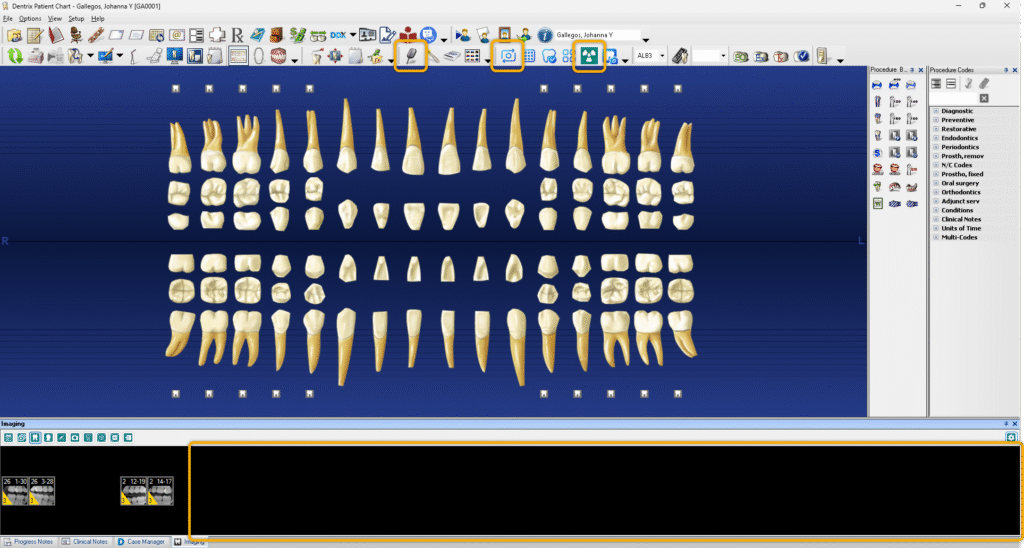
Beginning with Dentrix 26.2, the Dexis Integrator has been removed from the Chart. Instead, use the Dentrix Imaging panel to access your images.
You can open Dexis using any of the following touchpoints:
- Use the Acquire Xray with Sensor button
- Use the Acquire a 2D/3D or CAD/CAM Image button
- Use the Launch Dexis button
- Click any empty black space within the Imaging Panel
Dexis Integrator functionalities have been ported to Dentrix Imaging, allowing Dexis users to:
- See X-Rays in familiar anatomical layout
- Navigate historical images through stack navigation
- Access Dexis through same paths (I.e., background click on image strip and X-Ray acquisition toolbar buttons)
Make the Dentrix Image panel feel even more like the Dexis Integrator:
Changing these settings will make the Dentrix Imaging panel feel even more familiar to Dexis users.
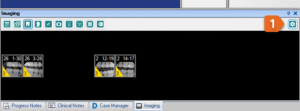
1. In the Image panel, click Preferences
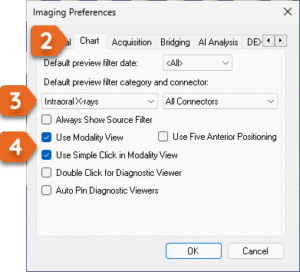
2. Click the Chart tab.
3. Under the heading Default preview filter category, select Intraoral X-rays
4. Select Use Modality View and Use Simple Click in Modality View.
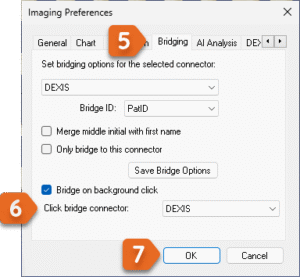
5. Click the Bridging tab.
6. Select Set Bridge on background,
and in the Click bridge connector menu, choose DEXIS.
7. Click OK to save the changes.